ApexLinux Complete Documentation
Comprehensive guide to ApexLinux QML shell configuration, architecture, and features
What is ApexLinux?
ApexLinux is a QML-based shell configuration for Quickshell, providing a minimal, customizable desktop environment with panels, launchers, and system controls. Unlike traditional shell configurations that require learning complex configuration languages or dealing with cryptic config files, ApexLinux is built entirely in QML (Qt Modeling Language), allowing you to modify every aspect of the shell by editing QML files.
Key Philosophy
- QML-First Approach: Everything is QML. No complex configuration languages—just QML.
- Full Customization: Modify every aspect by editing QML files directly.
- Modular Architecture: Each component is a separate module, making it easy to extend or replace.
- Minimal Resource Usage: Optimized for performance with minimal system overhead.
- Modern Design: Beautiful, modern UI with smooth animations and transitions.
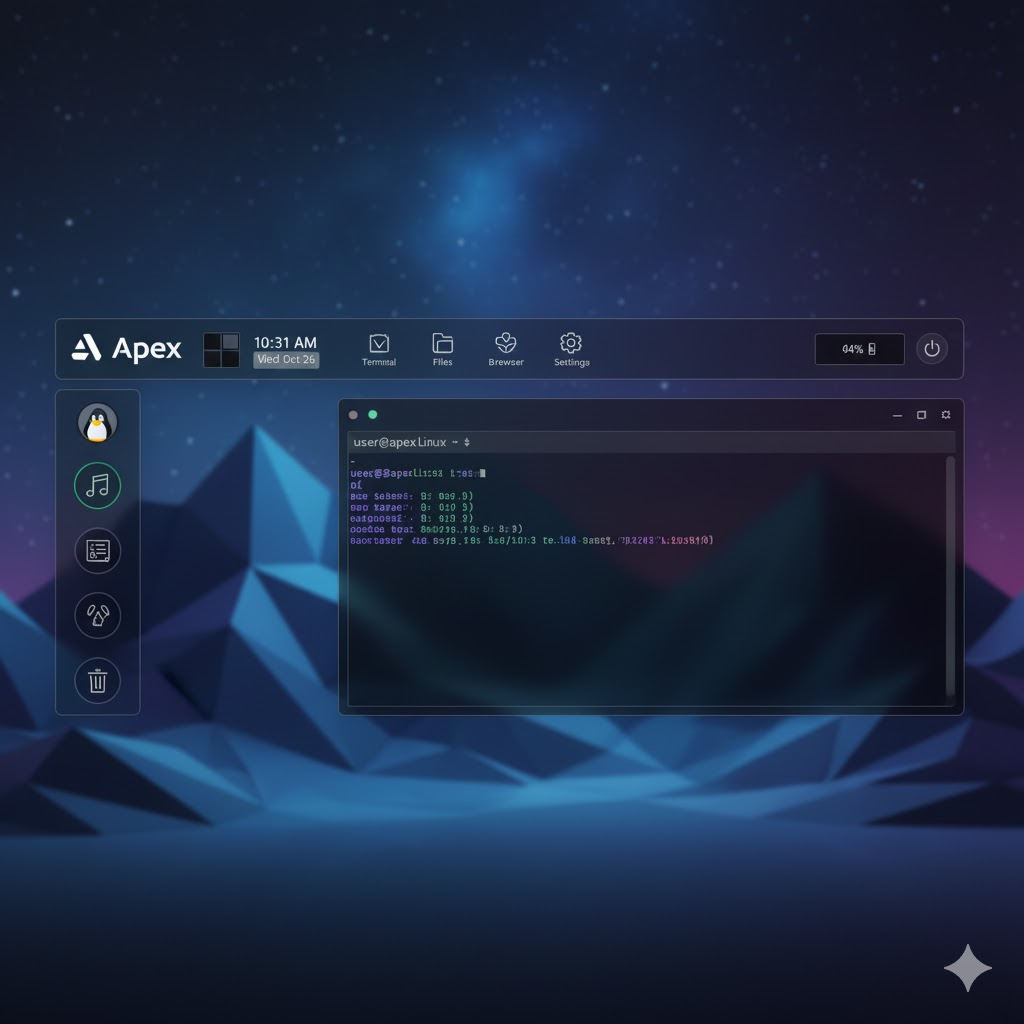
Architecture & Structure
ApexLinux follows a modular architecture where each component is a separate QML module. The architecture is organized hierarchically with apexlinux.qml as the entry point, which orchestrates all components through a well-defined structure.
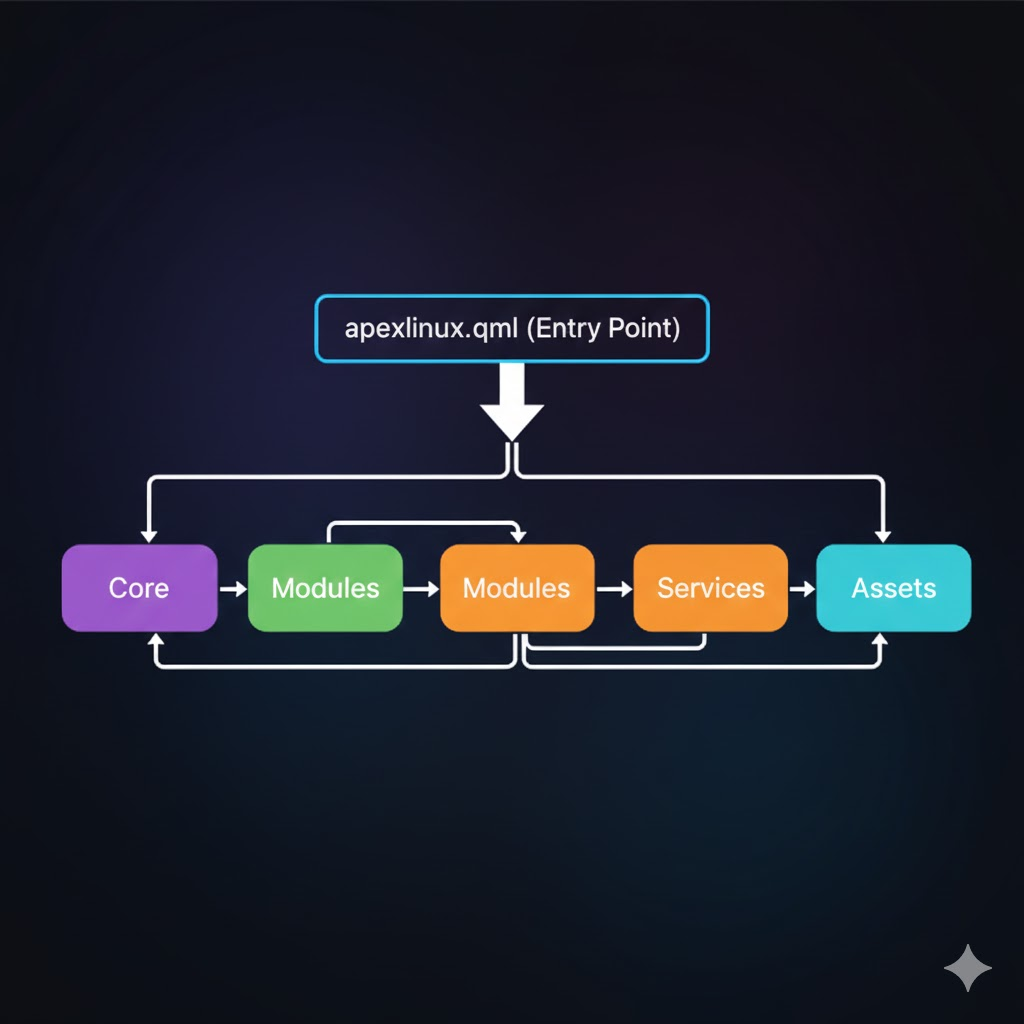
Architecture Overview
apexlinux.qml (Entry Point)
The main entry point that initializes and coordinates all components. It imports and manages the lifecycle of Core, Modules, Services, and Assets.
Core/
Core functionality including configuration management, color schemes, IPC handling, and global state management. Provides foundational services to all other components.
Config.qml- Configuration managementColors.qml- Color scheme managementGlobalState.qml- Global application stateIpc.qml- Inter-process communication
Modules/
All shell modules including panels, launchers, security features, and system controls. Modules depend on Core for configuration and state, and may interact with Services for data.
Bar/- Top/bottom bar with widgetsLauncher/- Application launcherLock/- Lock screenSecurityMonitor/- Security monitoringAutoVPNConnector/- Auto VPN features- And 30+ more modules...
Services/
System services that provide data and functionality to modules. Services can feed data back to Modules and may depend on Assets for resources.
WallpaperService.qml- Wallpaper managementMprisService.qml- Media player integrationNetworkService.qml- Network status- And 15+ more services...
Assets/
Static resources including images, icons, and other media files. Assets are referenced by Core, Modules, and Services for visual elements.
Component Dependencies
The architecture follows a clear dependency flow: apexlinux.qml → Core → Modules → Services → Assets, with bidirectional feedback loops allowing Services to update Modules, and Assets to be referenced by Core. This modular design ensures easy customization and maintenance.
QML-Based Configuration
ApexLinux uses QML (Qt Modeling Language) for all configuration and UI. QML is a declarative language that makes it easy to create fluid, animated user interfaces. Since everything is QML, you can modify any aspect of the shell by editing QML files.
Why QML?
- Declarative Syntax: Describe what you want, not how to achieve it.
- Easy Customization: Change colors, layouts, and behavior by editing QML properties.
- Visual Development: See changes immediately without complex build processes.
- Type Safety: QML provides type checking and property validation.
- Modern UI: Built-in support for animations, transitions, and modern UI patterns.
Example: Customizing Colors
// Core/Colors.qml
QtObject {
    property color bg: "#1E202B"
    property color fg: "#D9E0EE"
    property color accent: "#8AD7EB"
    property color surface: "#2A2D3A"
    property color border: "#3A3D4A"
    property color muted: "#6B7280"
}
Simply edit the color values in Core/Colors.qml to change the entire shell theme. The screenshot below shows the QML code editor with syntax highlighting and a color picker tool, making it easy to visualize and modify color properties.
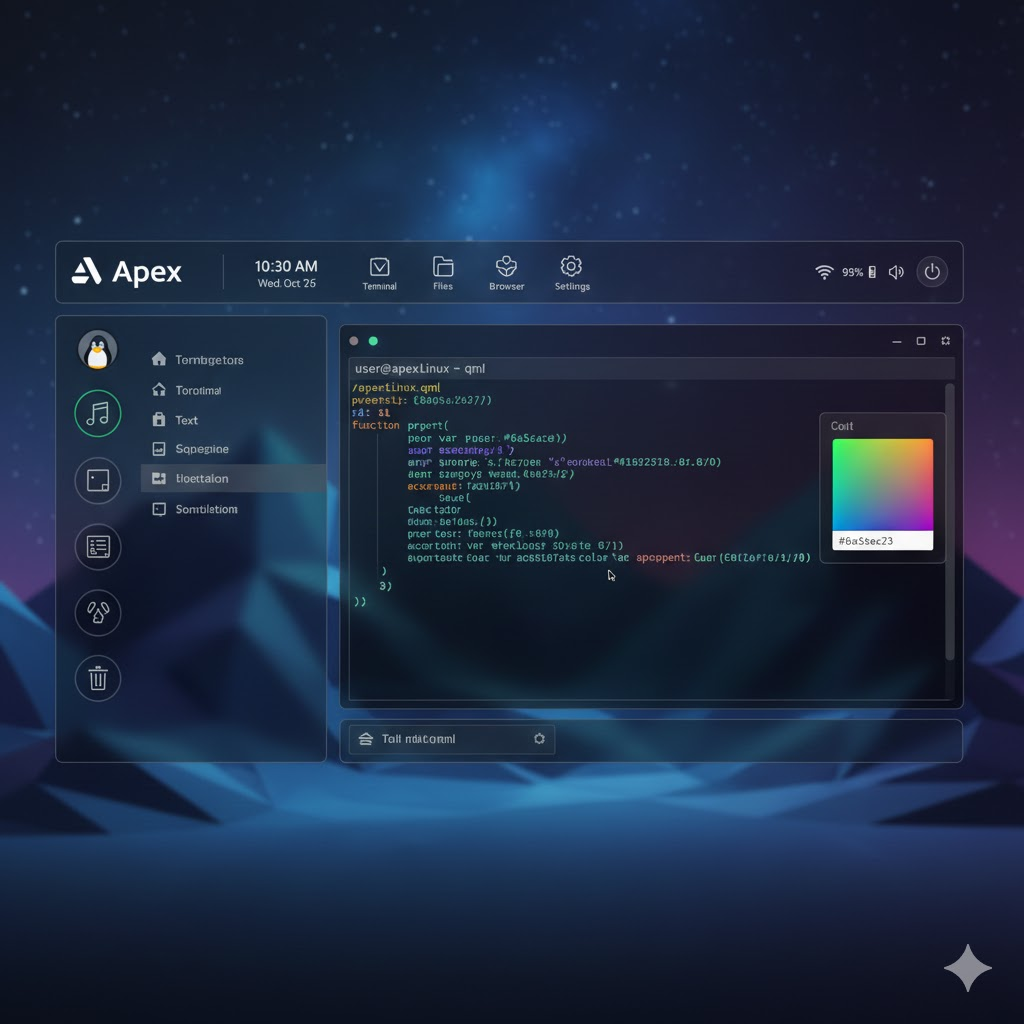
Editing QML Files
As shown in the screenshot above, editing ApexLinux is straightforward:
- Syntax Highlighting: QML code is automatically highlighted for better readability
- Color Picker: Built-in color picker tools help you select and preview colors directly
- Live Preview: Changes to QML files are reflected immediately in the running shell
- No Compilation: QML is interpreted, so you can edit and see results instantly
- Type Safety: QML provides property validation and error checking
Advanced Security Features
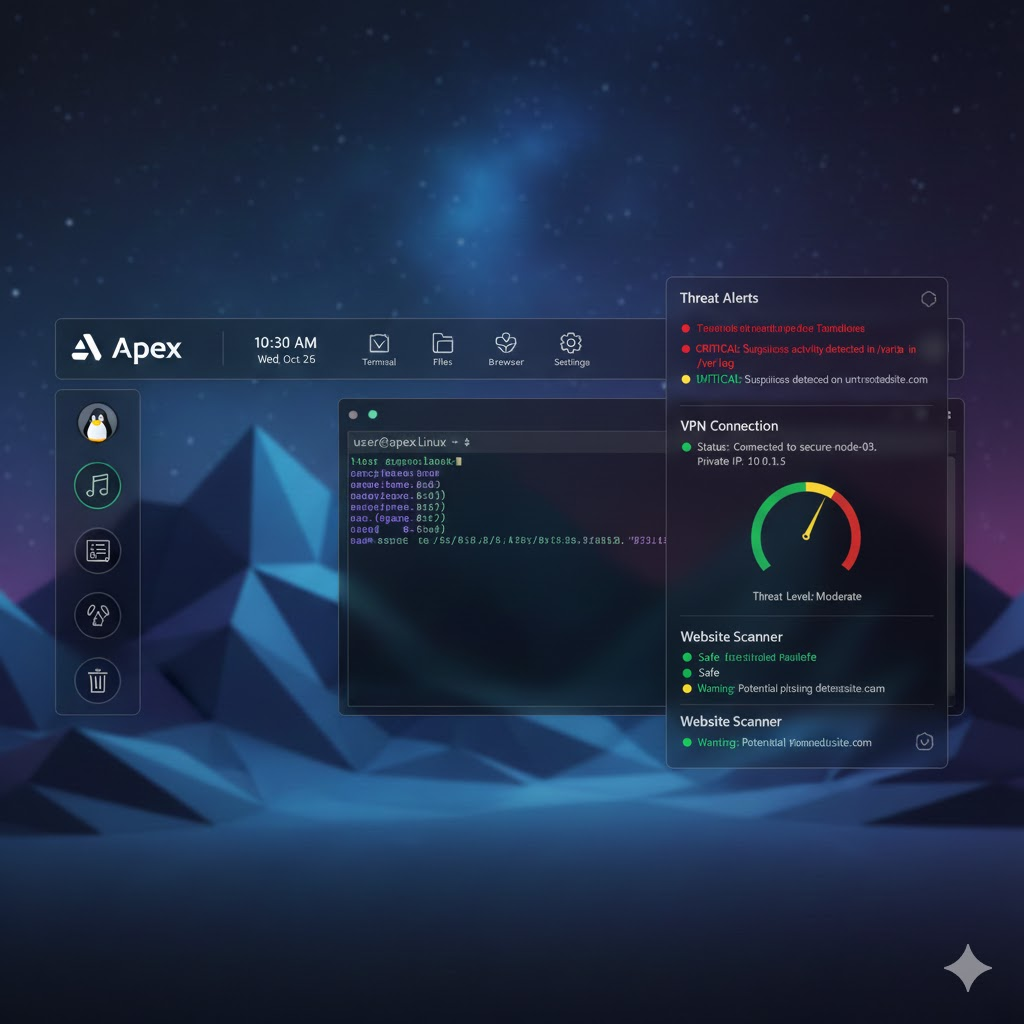
ApexLinux includes 30+ advanced security modules designed to protect your system from threats, monitor network activity, and provide real-time security alerts. The screenshot below shows the Security Monitor panel in action, displaying threat alerts, VPN connection status, and website scanner results.
Auto VPN Connector
Automatically detects dangerous websites (darkweb, .onion domains, malicious sites) and connects VPN automatically to protect your privacy.
- Real-time website monitoring
- Multiple VPN support (Tor, WireGuard, OpenVPN)
- Automatic threat detection
- One-click VPN connection
Website Security Scanner
Scans websites for malware indicators, suspicious domains, and threat levels before you visit them.
- URL threat analysis
- Threat score calculation
- Darkweb domain detection
- Real-time warnings
Malware Detector
System-wide malware scanning with automatic detection and removal capabilities.
- Real-time system scanning
- Multiple malware type detection
- Automatic threat removal
- Threat severity classification
Security Warning System
Advanced popup warnings for security threats with Block/Allow/Use VPN options.
- Automatic threat warnings
- Multiple warning types
- Quick action buttons
- Auto-hide functionality
Security Dashboard Overview
The security dashboard provides a comprehensive view of your system's security status:
- Threat Alerts: Real-time notifications with color-coded indicators (red for critical, yellow for warnings, green for safe)
- VPN Status: Connection status, private IP address, and visual threat level gauge
- Website Scanner: Real-time website analysis with safety ratings and phishing detection
- Terminal Integration: Security logs and alerts displayed directly in the terminal
IPC Commands & Automation
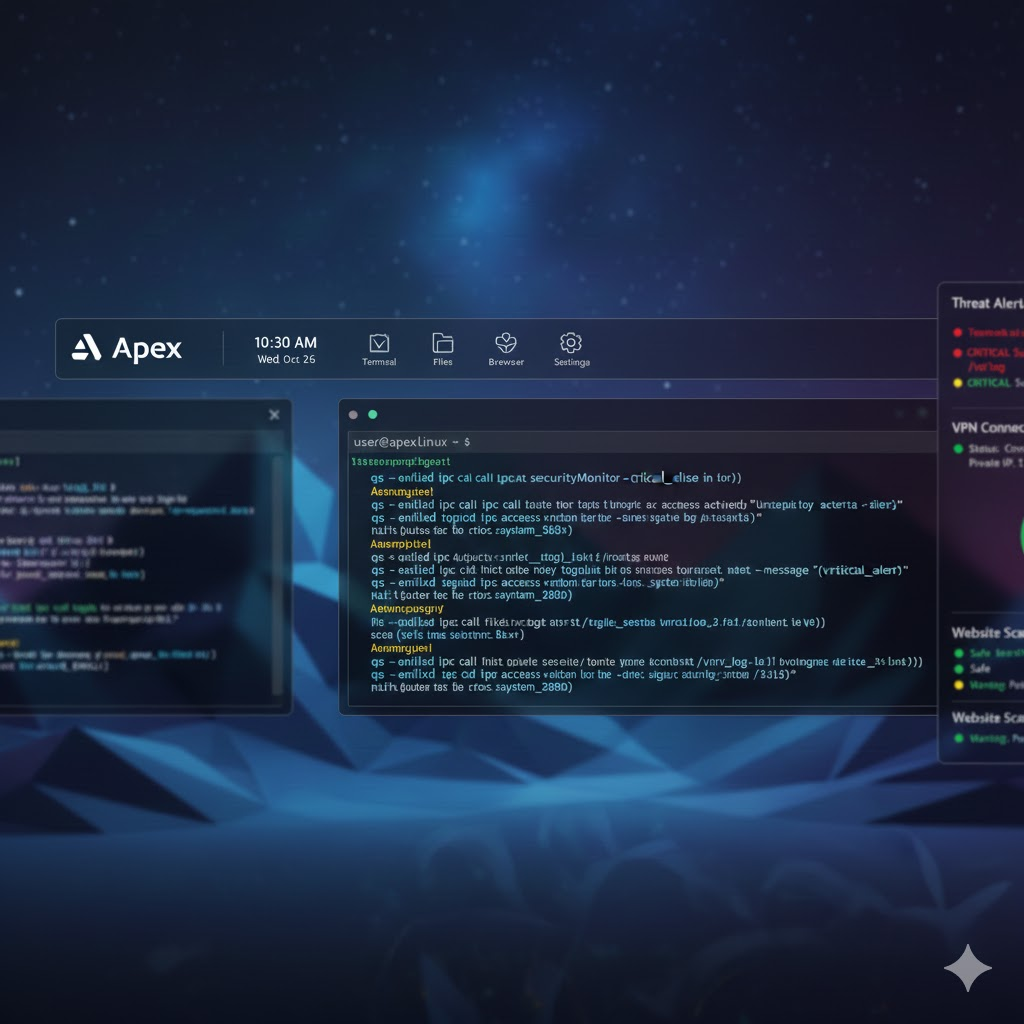
ApexLinux provides IPC (Inter-Process Communication) commands that allow you to control the shell from the command line or scripts. This enables automation and integration with other tools. The screenshot below demonstrates IPC commands being executed in the terminal, showing command output and shell responses.
Command Format
qs -c evilxd ipc call <target> <function>Where evilxd is the configuration directory name. As shown in the screenshot above, commands are executed directly in the terminal with immediate feedback and syntax highlighting.
Common Commands
Launcher
qs -c evilxd ipc call launcher toggleSecurity Features
qs -c evilxd ipc call securityMonitor toggle qs -c evilxd ipc call autoVPNConnector toggle qs -c evilxd ipc call malwareDetector toggleSystem Controls
qs -c evilxd ipc call lock lock qs -c evilxd ipc call powermenu toggle qs -c evilxd ipc call settings toggleUsing IPC Commands
As demonstrated in the terminal screenshot above, IPC commands provide a powerful way to control ApexLinux:
- Real-time Control: Toggle modules, panels, and features instantly from the command line
- Scripting Support: Integrate ApexLinux controls into shell scripts and automation workflows
- Syntax Highlighting: Terminal output is color-coded for better readability
- Immediate Feedback: Commands provide instant responses and status updates
- Error Handling: Clear error messages help troubleshoot issues quickly
Customization Guide
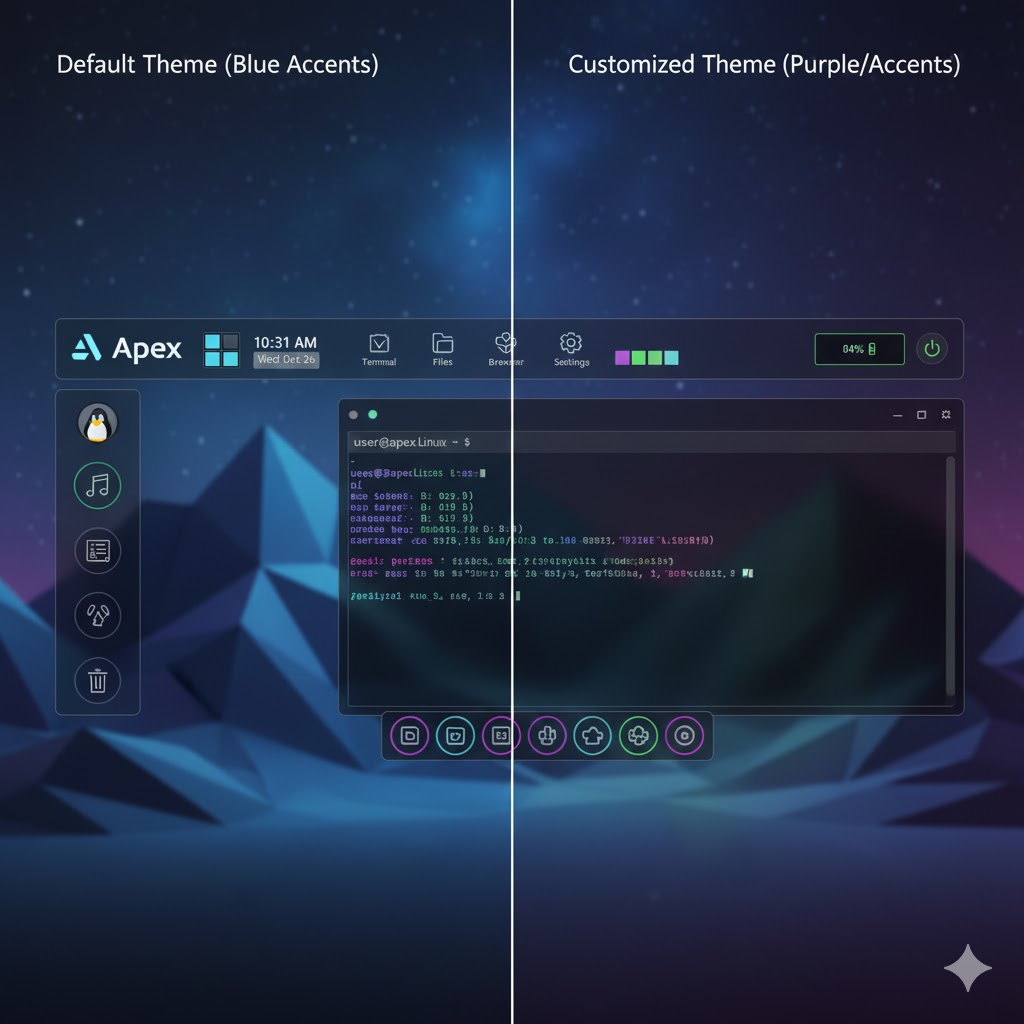
Customizing ApexLinux is straightforward—just edit QML files. The side-by-side comparison below demonstrates how easy it is to transform the entire shell theme by simply changing color properties in QML files.
Customization Examples
As shown in the comparison above, ApexLinux allows you to completely transform the visual appearance while maintaining all functionality:
Default Theme (Left)
- Blue accent colors
- Standard layout
- Default icon highlights
- Classic dark theme
Customized Theme (Right)
- Purple accent colors
- Modified color scheme
- Custom icon highlights
- Personalized appearance
Changing Colors
Edit Core/Colors.qml to change the color scheme. The comparison screenshot shows how changing accent colors affects the entire shell:
// Default (Blue)
property color accent: "#8AD7EB"

// Customized (Purple)
property color accent: "#A78BFA"
Modifying Bar
Edit Modules/Bar/Bar.qml to change bar appearance, position, or widgets. All changes are reflected immediately.
Adding Custom Modules
Create a new QML file in Modules/ and register it in Modules/Overlays/Overlays.qml. The modular architecture makes it easy to extend functionality.
File Structure
~/.config/quickshell/evilxd/
├── Core/                    # Core components
│   ├── Config.qml          # Configuration management
│   ├── Colors.qml          # Color schemes
│   ├── GlobalState.qml     # Global state
│   └── Ipc.qml            # IPC handling
├── Modules/                # Shell modules
│   ├── Bar/               # Top/bottom bar
│   ├── Launcher/          # App launcher
│   ├── Lock/              # Lock screen
│   ├── SecurityMonitor/   # Security features
│   ├── AutoVPNConnector/  # VPN features
│   └── ...                # 30+ more modules
├── Services/              # System services
│   ├── WallpaperService.qml
│   ├── MprisService.qml
│   └── ...                # 15+ more services
├── Assets/                # Images, icons
├── Scripts/               # Utility scripts
└── apexlinux.qml         # Main entry point
Installation
Prerequisites
Install Quickshell first:
sudo pacman -S quickshellUser Install
git clone https://github.com/codewithevilxd/ApexLinux /tmp/apexlinux-temp
cp -r /tmp/apexlinux-temp/apexlinux/* ~/.config/quickshell/evilxd/
rm -rf /tmp/apexlinux-temp
qs -c evilxd -f apexlinux.qml
System-wide Install
git clone https://github.com/codewithevilxd/ApexLinux /tmp/apexlinux-temp
sudo cp -r /tmp/apexlinux-temp/apexlinux/* /etc/xdg/quickshell/evilxd/
rm -rf /tmp/apexlinux-temp
qs -c evilxd -f apexlinux.qml
Conclusion
ApexLinux provides a powerful, customizable shell environment built entirely in QML. With 30+ security features, modular architecture, and easy customization, it's perfect for users who want full control over their desktop environment.
Get Started
Ready to try ApexLinux? Follow the installation guide above or visit the GitHub repository for more information.